
Banagar Samaja
Society Owners' Manual — start to finish
How to bring your sangha onto this portal, who does what, how families register, and how your existing written register can be entered.
For society chairpersons, secretaries, office bearers and area admins.
This page is available in English and Kannada — use the language switch at the top.
What this portal is
One verified record per family, area by area — kept by our own samaja, free of cost. No fee, donation or grant is collected from any member, society or organisation.
Families & members
Personal, education, career, health and residence details of every member.
Business & services
Shops, trades and services run by our families.
Matrimony
Profiles for sons and daughters, visible only to signed-in members.
Societies & bearers
Registered and unregistered sanghas with their office bearers.
Achievements
Ranks, awards and recognitions of our students and members.
Events
Samaja meetings, jatre, felicitations and camps with photos.
Jobs & opportunities
Job openings, training and scholarship information for our youth.
Shakti — women showcase
Women running businesses, working or serving as role models.
Need help / Can help
Families mark what support they need or can offer; members only.
Remembrance
Members who have passed away are honoured on a separate page.
Admin directory
District, taluk and area admins with their contact details.
Community analytics
How many families and members we are, and where.
Roles at a glance
Routine approvals are done by the area/city admin — not by the super admin.
Step 1
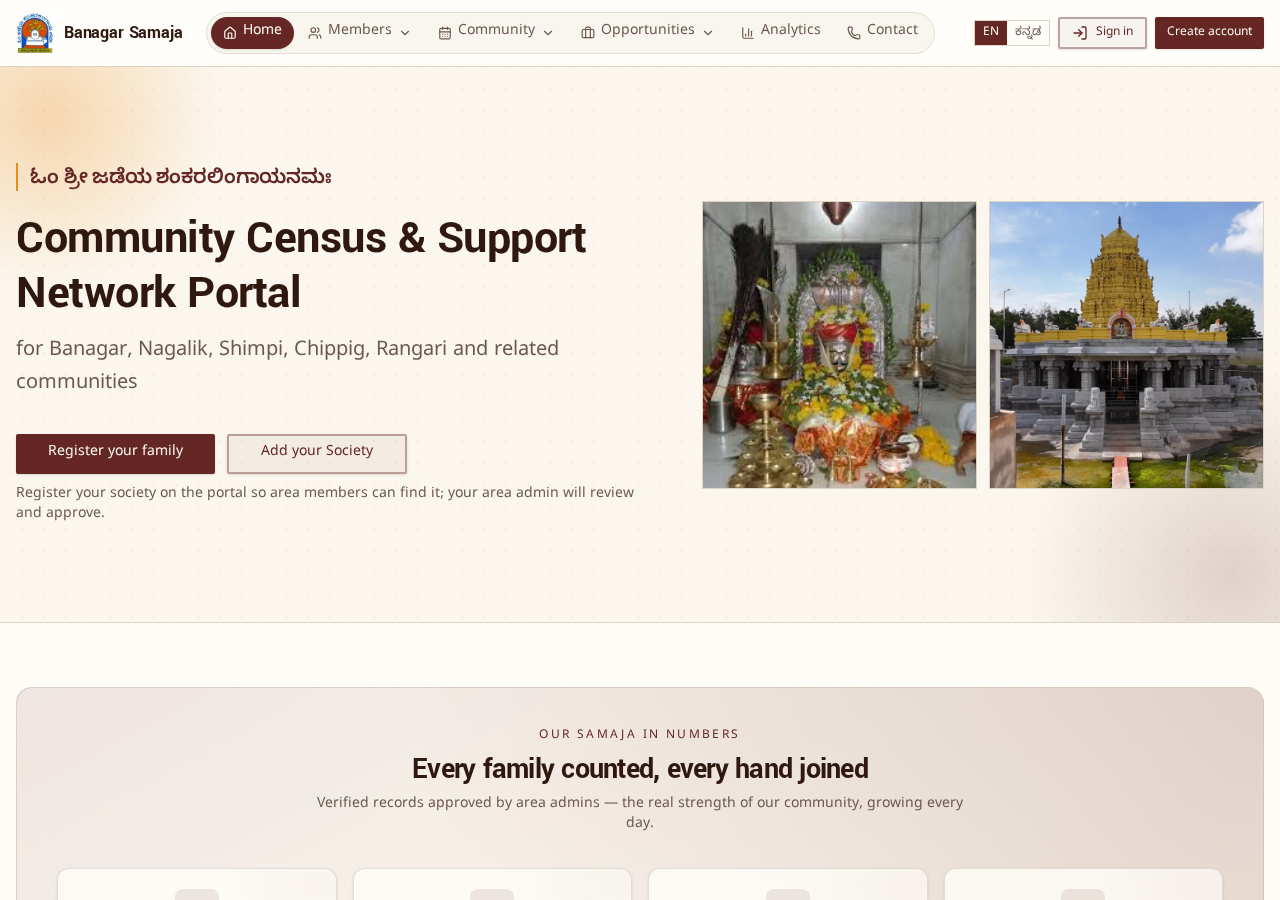
Bring your society onto the portal
Start inside your society, nominate your area admin, and contact the portal coordinator. Families can register only after this is complete.
- Discuss with your society members, office bearers, chairperson and secretary. Decide together that you want to bring your sangha onto the portal.
- Nominate one responsible person as the area / city / village admin. Large taluks or cities can have more than one admin if needed.
- Send the nominee's name and your district, taluk and area / city / village name to Prof. Shashidhar Kubasad, the portal coordinator, on WhatsApp.
- Once the coordinator adds your area, the nominee creates an account, registers your society, and the coordinator approves it. Then area members can start registering their families.
The simple flow
Society discusses and decides to use the portal
Nominate one area / city / village admin
WhatsApp the nominee + district / taluk / area details to Prof. Shashidhar Kubasad
Coordinator adds the area to the portal
Nominee creates account and registers the society
Coordinator approves society; families start registering
Step 2
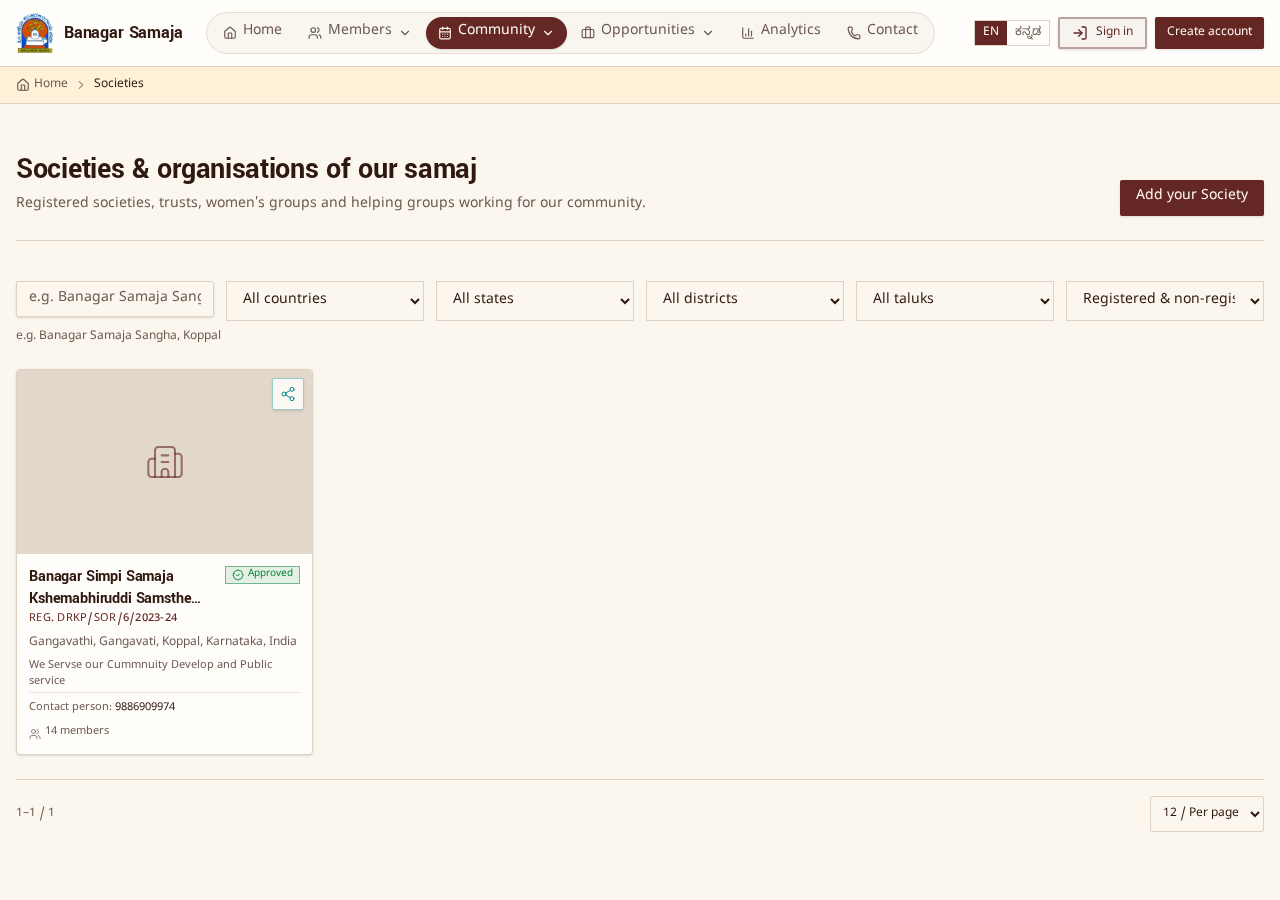
Your area is open — now register the society
After the coordinator adds your area and makes your nominee the admin, complete these actions.
- The nominated area admin creates their own account on the portal and verifies their email.
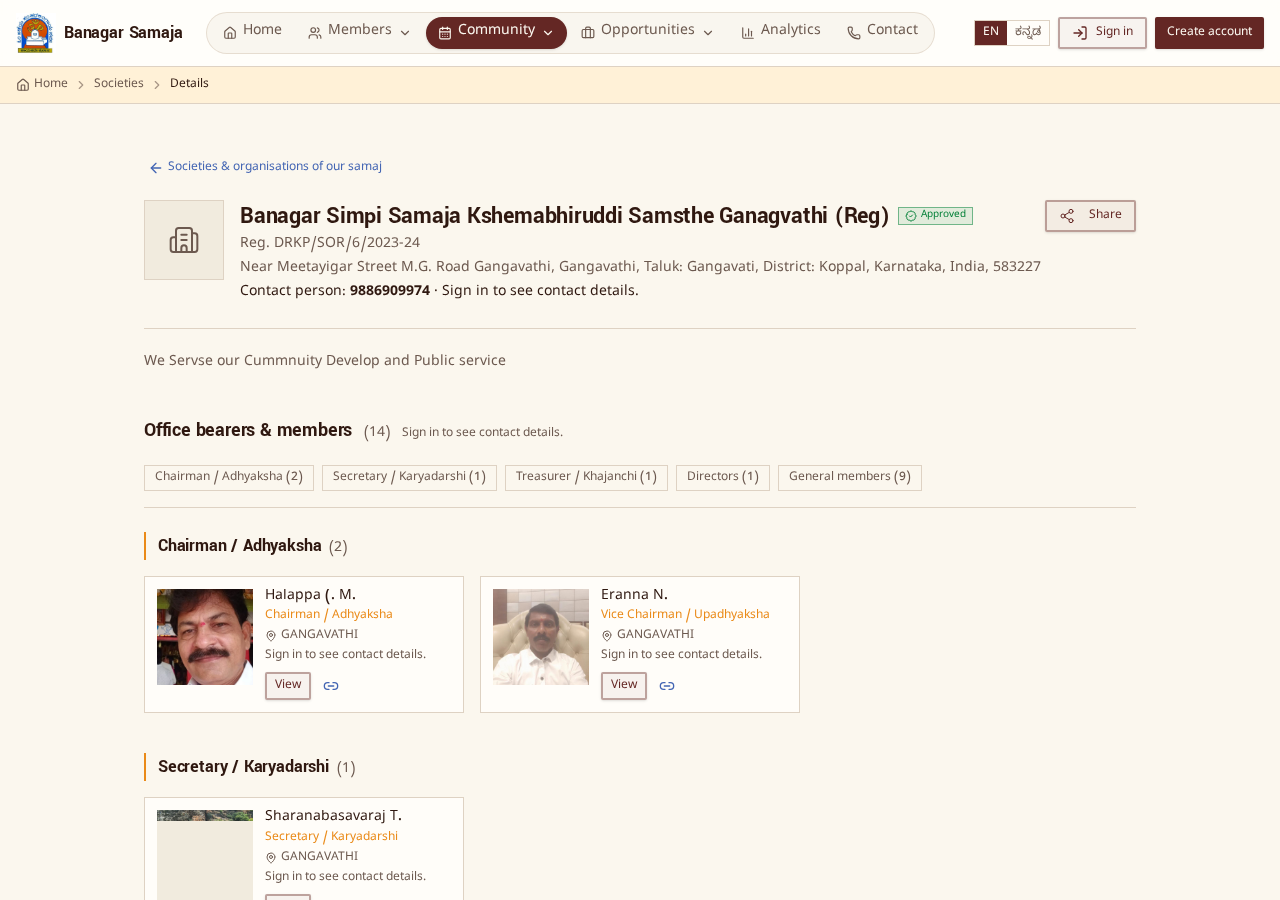
- Open the Societies page and register your sangha with name, type, contact person, address and other details.
- The portal coordinator approves the society and links it to your area admin. Until then it stays pending.
- Once approved, add office bearers with designation, photo and display order — chairman, secretary, treasurer and members.
Areas are added manually only after the local samaja leadership talks to the core team. Once added, families of that area can register immediately.
Step 3
Members register and fill their details
Tell your members this is a one-time, 15-minute job.
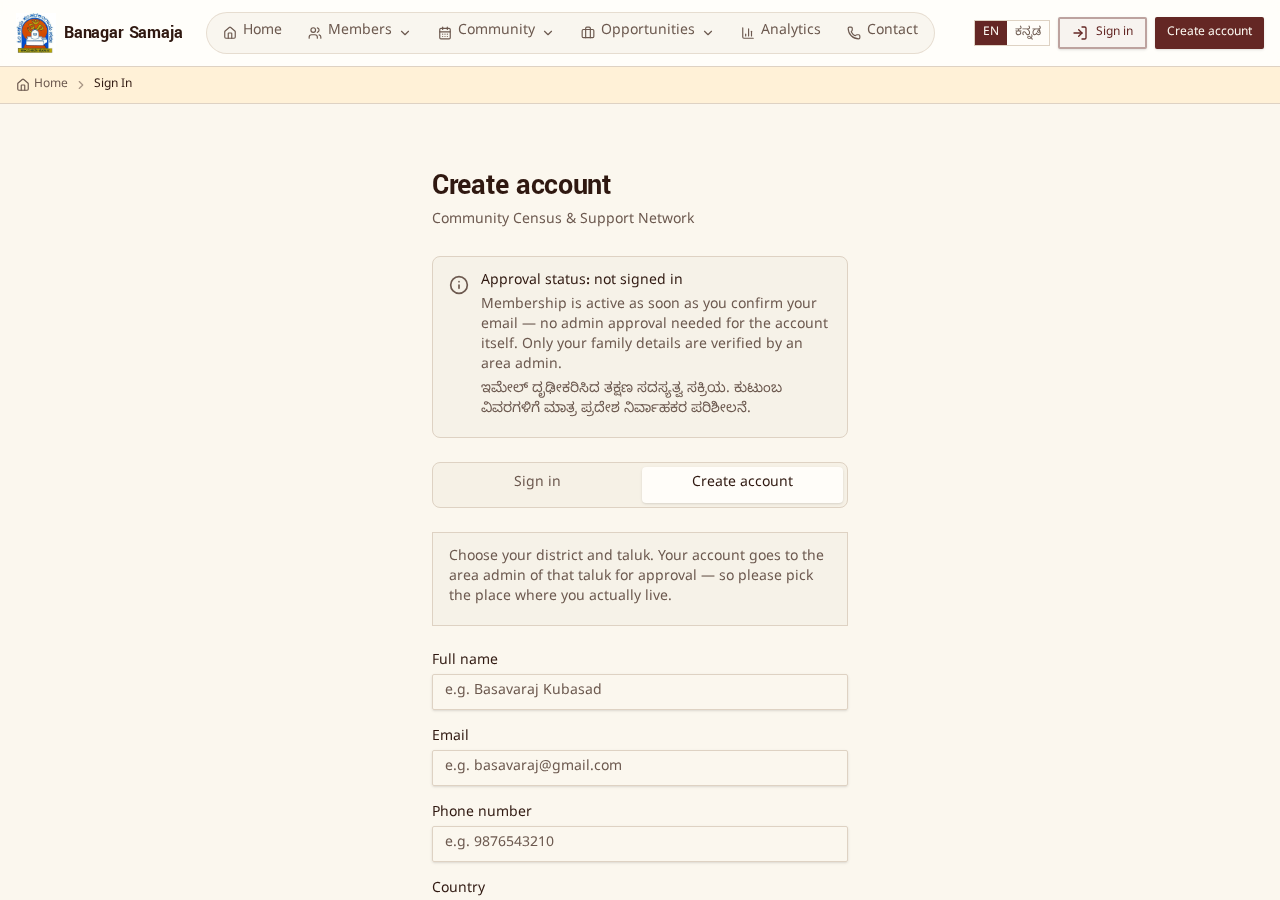
- Create an account with email and password, choose district, taluk and area, and verify the email. Membership is active as soon as the email is confirmed.
- Add the family record — family name, address, gotra, head of family — then each member one by one with a recent headshot photo.
- Optional but valuable: business or service, matrimony profiles for sons and daughters, help needed or offered, achievements, jobs and Shakti entries.
- The family record stays pending until your area admin approves it.
Step 4
Area admin verifies and approves
Everything waiting for review sits in one queue inside the dashboard.
- Families, members, businesses, societies, matrimony profiles, achievements and posts all arrive in the review queue.
- Approve it, or send it back with a note; the family corrects and resubmits.
- Every approval is recorded with the approving admin's name, so the society always knows who verified what.
- If an approved family edits later, the record goes back to pending and the admin is notified.
Step 5
We already have offline family data — what now?
The question most chairpersons ask. Your written register is not wasted.
- The area admin opens “Offline family entry” in the dashboard and enters households straight from the written register — the family does not need an account.
- Each such record is stamped with the name of the admin who entered it.
- If that family later creates an account, the admin edits the same record instead of creating a duplicate.
- Print the family report for the household to sign and keep in the society office file.
Step 6
Keeping the records current
A census is only useful if it is kept alive.
- Members can edit their details anytime; the admin re-checks the change.
- When a member passes away, the area admin marks them as deceased and the name moves to the Remembrance page.
- An area admin can edit or delete listings only inside their own area.
- Family and society reports carry a verification code that anyone can check on the verify page.
What you can promise your members
- Member names are masked for the public, and member pages are kept out of search engines.
- Phone, address, card number, health and income details are never shown publicly.
- Matrimony and the support boards are members-only.
- Each admin sees only their own area's data, and every action is logged.
Questions society owners ask
We have many small unregistered sanghas in one taluk. How can they all work?
Any number of societies can work with this portal. Each one registers separately as a society — registered or unregistered — and is linked to the area it chooses. For each area/city an area admin is assigned, and that person verifies the members of that area.
Must our society be registered?
No. Mark it as unregistered while adding. The registration number and expiry are asked only if you have them.
Who approves our members?
Your own area/city admin. The super admin does not do routine approvals.
Why is our taluk or area not in the dropdown?
Areas are added manually only after the local samaja leadership talks to the core team. Once added, families of that area can register immediately.
Can one person be admin for two areas?
Yes. The super admin can give the same person more than one area assignment.
What if a member lives in another district?
They should register under the place where they actually live, so the admin of that area can verify them in person.
Can a wrong entry be removed?
Yes. The area admin can edit or delete entries within their own area, and can send an entry back to the family with a note.
Is there any fee for our society or members?
No. The portal is built and maintained free of cost, and no fee, donation or grant is accepted.
How do we get a printout for our office file?
Open the family or society report and download it as a PDF. It carries page numbers and a verification code.
What happens when a member passes away?
The area admin marks the member as deceased. The name and photo move to the Remembrance page respectfully and are removed from the active directory.
Who owns this data?
The community. Each family owns its own record and can edit it; societies own their society record and bearer list.
How long does it take to start?
Usually a few days — one discussion, society registration, area creation and one admin nomination. After that your members can start the same day.
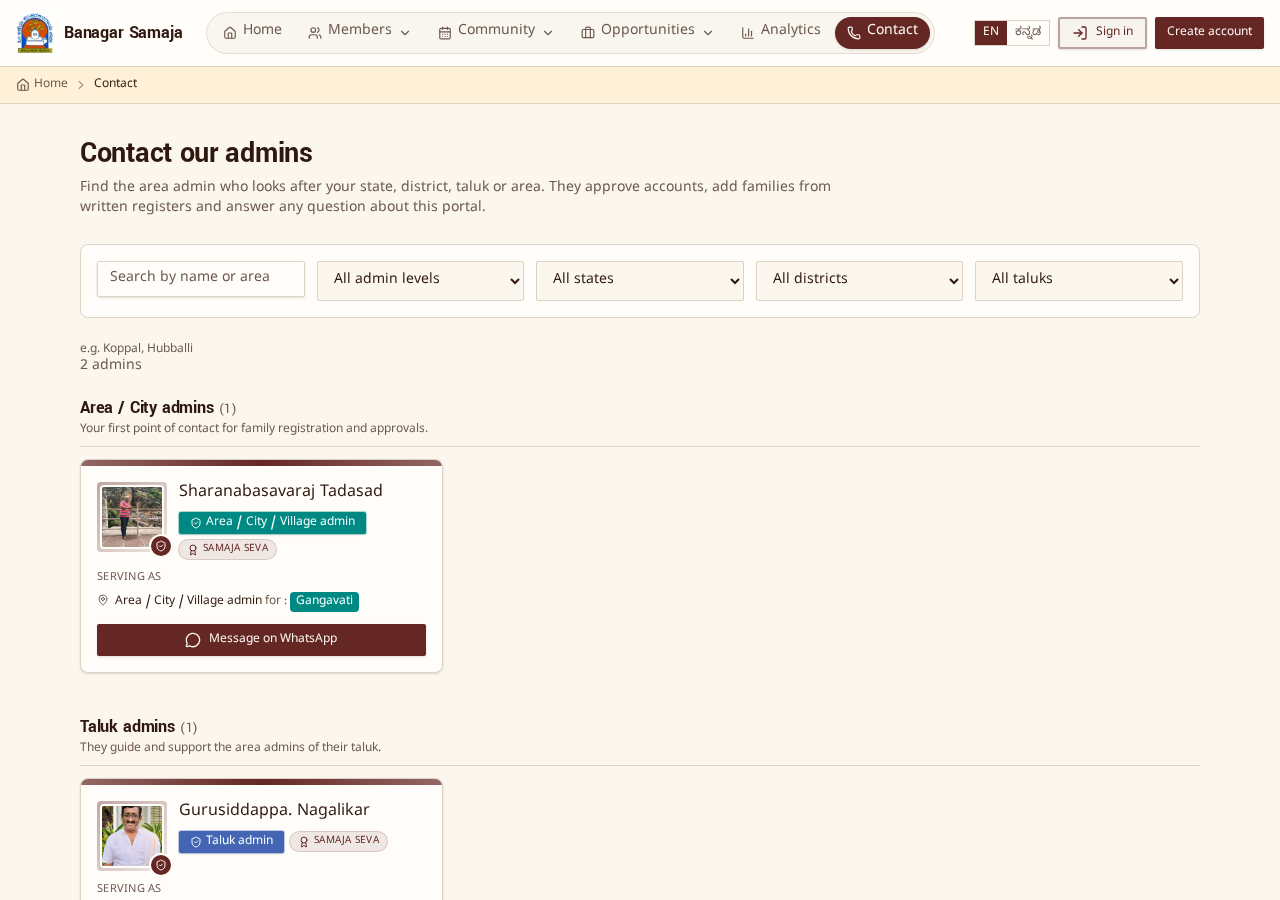
Register your society first, then contact the core team so your area can be added and your admin assigned. The contact page lists the district, taluk and area admins already working.